How should I structure my community?
Four spaces to start with, four starter layouts, and how to fix a community with too many rooms
Guides
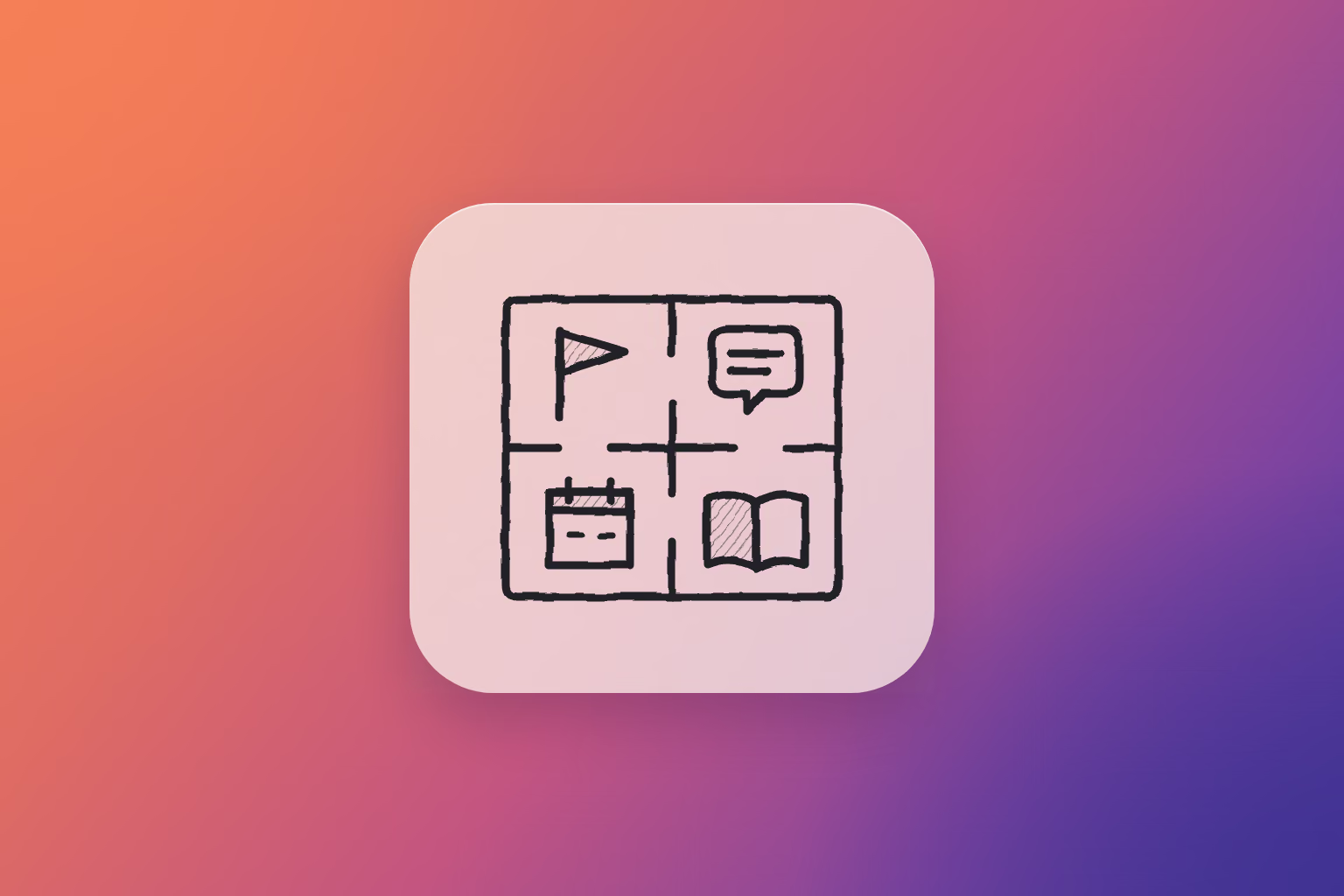
Start with fewer rooms than you think you need. Every community needs four spaces: somewhere to start, somewhere to talk, somewhere to meet and somewhere to find things. In Heartbeat, two of them are already in your sidebar. The part you design is the Channels underneath, and that's where most new communities go wrong: a Channel for every topic and two or three people in each.
It's one of the questions admins bring to Pulse most often. Over the past year, admins in more than a hundred paying communities asked it how to lay out their Channels and Groups. Some were designing a community for the first time. Others had built so many rooms that their members couldn't find each other. Here's the layout I'd start with, and how to change it as you grow.
| Space | What it's for | In Heartbeat |
|---|---|---|
| Start here | Welcome, guidelines, introductions | Two Channels you create: a read-only Announcements Channel and an Introductions Channel |
| Talk | Questions, wins, conversation | Two Channels you create: one Threads Channel and one Chat Channel |
| Meet | Live calls and workshops | Events, already in your sidebar |
| Find | Lessons, replays, templates | Course and Resources, already in your sidebar |
Start with fewer Channels than you think
Every Channel splits your members' attention. Thirty active members spread across ten Channels is three people per room, and a new member scrolling through sees mostly quiet rooms. A community starts to carry itself at around 15 to 20 active members. Below that, keep everyone in as few rooms as possible so the activity is easy to see.

One fitness community on Heartbeat had more than 20 Channels, one for each show its members competed in. When the admin opened a single Topics Channel, dozens of members posted in it within three weeks. The show Channels averaged about one poster each.
Add a Channel when a conversation keeps landing in the wrong place. Noele Flowers, a community and online learning expert who has run community at Teachable, handles off-topic chat this way: "just creating like a random or a water cooler channel," then reminding members to use it. A new Channel should solve a problem you can already see.
Two spaces are built in, two you create
Your sidebar has two parts. The top holds the pages every community has: Pulse, Feed, Course, Resources, Events and Directory, plus any links you add. Below that are your Channels, sorted into sections you name. Meet and Find already live at the top. Start here and Talk are the Channels you create.

Start here. Make a section called Start here with two Channels in it. Announcements is a Threads Channel with Read only turned on, so only you post. Introductions is a Threads Channel where every new member says hello. Pin your welcome post and your community guidelines. Our guide to onboarding new members covers what goes in them.
Talk. One Threads Channel for questions and wins, and one Chat Channel for casual conversation. Threads keep longer answers findable later. Chat is for quick back-and-forth. Put them in a second section, under Start here.
Meet. Your live calls and workshops go in Events, at the top of the sidebar, so members have one place to see what's coming up. You don't need a Channel for them.
Find. The Course holds what members go through once and in order. Resources holds everything they come back to, in folders. Neither needs a Channel.
Every room you create is a Channel, and every Channel is one of three types: Threads, Chat or Voice. There's no special type for announcements or replays. You make an announcements Channel by turning on Read only, and replays belong in Resources.
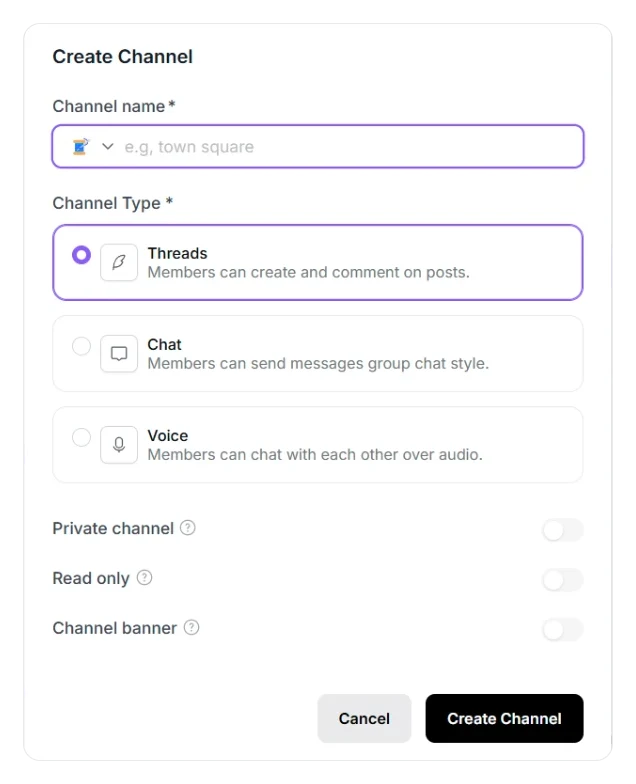
Bri Leever, a community strategist, recommends making sure your first experiences span formats: at least one call, one channel and one resource. "Try to create a little bit of diversity in the format of your experiences." Members engage in different ways at different times, and the four spaces give each of them a place.
Put content where members will look for it
Lisa Princic, membership strategist and founder of Scaling Deep, splits membership content into three layers. There's monthly content, the recurring promise members pay for. There's foundational content, "the stuff that people will consume first," usually only once. And there's specialty content, the things you share when you've learned something worth sharing.
Each layer has a natural home in Heartbeat:
- Foundational content goes in the Course, so new members work through it in order.
- Monthly content goes in Resources, with a folder for replays and a folder for templates. The calls themselves are Events.
- Specialty content starts as a post in your Talk Channel. When a post turns into a great discussion, convert it into a document so it doesn't scroll away. The comments come with it.
Build small rooms inside the big one
Big calls are good for energy, but members rarely make friends there. Laura Zug, a community strategist, compares them to a school pep rally: "you probably didn't make that friendship at like the pep rally or the all school football game. You probably made that friendship in a club or a class or something that was smaller."
In Heartbeat, a small room is a Group with its own section of Channels: a cohort, an accountability pod, a region or a level. Make the Group's Channels private to that Group, and give them a section of their own. A section only shows to members who can see at least one Channel in it, so each Group sees its own rooms and nobody else's. A Group can also sit under another as a sub-group, so a cohort's members get everything in the main membership plus their own space.

Keep free and paid apart
Before you split anything, check who your free members are. Tatiana Figueiredo, founder of Friendly Nooks, asks whether two tiers serve the same person at a different stage, or two different people: "If it's two different people, then you're gonna end up building two different communities, and that's really distracting." A free tier works when it's a lighter version of the paid one, for people who aren't ready to commit yet.
If that's your free tier, give free members their own Talk Channel and keep paid Channels in a separate section, so each tier gets a room that fits where it is.
Free members won't see a section they have no access to. If you'd rather they see what they're missing, turn on upsells on your paid Offer. Paid content then shows to free members with a checkout prompt.
Four starter layouts
Pick the one closest to what you sell, then cut anything you don't need yet. In every layout, Course, Resources and Events sit at the top of the sidebar. The sections below them are the Channels you create.

1. Ongoing membership. One paid tier, members stay month to month.
- Start here section: Announcements (Threads, read-only), Introductions (Threads)
- Community section: Questions and wins (Threads), Lounge (Chat)
- Events: your weekly or monthly calls
- Course: a short welcome course for new members
- Resources: a Replays folder and a Templates folder
- Groups: one, for the membership tier
2. Cohort program. A group starts and finishes together, then you run it again.
- Everything in the ongoing membership
- The program's Course, run in cohorts. Each cohort gets its own copy of the lessons, and Heartbeat creates a sub-group for its members automatically.
- A section for each cohort, with Channels only that cohort's sub-group can see, plus that cohort's Events
- Lessons scheduled to open week by week, so the group moves through them together
- When a cohort ends, move graduates into an alumni Group with its own section, or into your ongoing membership, so finishing the program doesn't mean leaving
3. Course plus community. The course is the product, and the community helps people finish it.
- Course: the center of the community
- Start here section: Announcements and Introductions
- A section for the course: one Threads Channel for questions and one for wins. Hold off on a Channel per module until each module has its own crowd.
- Events: a weekly or monthly Q&A
4. Free plus paid. A free tier that leads into a paid one.
- Free section: Announcements and one Threads Channel, open to everyone
- Members section: the paid Channels, private to the paid tier's Group
- Paid Events and Resources folders, also limited to the paid Group
- Upsells on, so free members see the paid Channels with a checkout prompt
- One short Course free members can finish, with the next step into the paid tier at the end
Already have too many Channels?
Merge before you add anything new.
- Fold quiet Threads Channels into busy ones. Move All Threads moves every post from one Threads Channel into another. It works between Threads Channels only.
- Save what matters before you delete a Chat Channel. Chat messages can't be moved, and a deleted Channel can't be restored. Copy anything worth keeping into Resources first, and post a note telling members where the conversation lives now.
- Move reference material out of Channels. A Channel full of replays or templates belongs in a Resources folder instead.
- Tell members what changed and why in your announcements Channel, so nobody thinks their favorite room disappeared by accident.
Let Pulse lay it out
Describe your community to Pulse: who it's for, how often you meet and what members get. It can draft the Channels, sections, Groups, Courses and Events for you. Start from one of the layouts above, ask Pulse to set it up, then cut what you don't need yet.
How many Channels should a community have?
Start with four: a read-only announcements Channel, an introductions Channel, one Threads Channel to talk in and one Chat Channel. Your calls, courses and resources don't need Channels, since Events, Course and Resources are already in your sidebar. Add more only when a conversation keeps showing up in the wrong place.
What's the difference between a Channel and a Group?
A Channel is a place members post, and it's one of three types: Threads, Chat or Voice. A Group is a set of members. Groups decide who can see which Channels, Courses, Events and Resources, so you use them for tiers, cohorts and small groups.
Where should I put call replays?
In Resources, in a folder just for replays, so members can browse them by date. Put every recording in the same place so members always know where to look.
Should free and paid members share a space?
Give them separate Channels in separate sections, and let free members see the paid side through upsells. They're usually at different stages and want different things from the community.
How do I run several cohorts in one community?
Run your program's Course in cohorts. Each cohort gets its own copy of the lessons and a sub-group Heartbeat creates for its members, so give that sub-group a section of its own Channels, plus its own Events. Everyone shares the program's Resources.